
Instead of manually switching logins and checking which advertiser account is open, use a separate BitBrowser profile for each authorized EZmob account. This bitbrowser multi account setup keeps browser sessions apart; you still launch, review, and manage campaigns inside the advertiser dashboard.
- Use BitBrowser profiles to separate authorized EZmob logins, not to bypass account restrictions.
- Bitbrowser multi account setup organizes browser sessions; it does not configure conversion tracking.
- Verify the advertiser account before changing bids, budgets, creatives, or campaign status.
- Keep profile ownership, credentials, and any approved proxy assignment documented.
Why this matters
A browser session determines which account you are editing. Campaign targeting determines where you buy traffic. Mixing those jobs creates avoidable mistakes: the right creative can end up in the wrong account, or a bid change can affect a different campaign than intended.
EZmob is best for affiliate marketers and media buyers who want self-serve access to pop, push, display, and native traffic. Browser profiles organize access to that ad network; they do not replace its campaign controls. Start with EZmob when you need the platform overview rather than browser configuration.
For your 2026 workflow, treat BitBrowser as the session-management layer. Keep credentials, account permissions, traffic targeting, and conversion tracking as separate responsibilities. A clean browser setup makes account switching easier to verify, but campaign decisions still need campaign data.
Before you start
- Prepare authorized access. Have the advertiser credentials, access to the account's verification method, and permission to manage every account involved. Confirm whether separate advertiser accounts are permitted before creating additional logins.
- Prepare BitBrowser and an account map. Install the application from its official distribution source. Record each account's owner, login identifier, intended browser profile, and any approved proxy assignment without putting passwords in profile names.
- Separate proxy location from campaign GEO. A proxy changes the network route used by the browser; it does not select the countries targeted by an advertising campaign. Keep campaign GEO settings inside the advertiser platform, and use a proxy only when your authorized access workflow requires one.
Do not use browser isolation to evade account restrictions, verification, or creative moderation. Multiple browser profiles are an organizational choice, not permission to operate additional advertiser accounts. Resolve that permission question before building your 2026 account structure.
Choose your account workflow
Decide whether you are separating advertiser accounts or separating work within an account. Those are different jobs. Creating more profiles does not automatically make campaign management clearer.
| Workflow | Best for | Advantage | Limitation |
|---|---|---|---|
| Separate profile for each authorized advertiser account | Media buyers managing distinct approved accounts | Keeps each account's browser session in its assigned environment | Requires careful ownership and credential management |
| Existing advertiser account with a documented campaign structure | Buyers separating offers, GEOs, or creative tests within an account | Keeps account administration together | Browser profiles alone cannot separate campaign reporting or permissions |
Choose separate profiles when the account itself needs separation. For different offers within the same advertiser account, begin with campaign naming and reporting organization instead. Do not create extra advertiser accounts merely because the browser supports extra profiles.
The self-serve campaign workflow still has a gate: new campaigns go through creative moderation before going live. BitBrowser does not remove that step. Build review time into your launch process rather than treating a successful login as a successful launch.
Account map
- Identify the account owner. Record who owns each advertiser account and who is allowed to use it. Use a stable account identifier rather than an offer name that will change with the next campaign.
- Assign a profile name. Combine a recognizable account label with the responsible buyer or team. Keep the name readable in the profile list; exclude passwords, authentication secrets, and sensitive client details.
- Record the access route. Note whether the profile uses the normal network connection or an approved proxy. If a proxy is required, retain its connection details in the appropriate secure credential store.
- Define the account check. Choose the visible account detail you will confirm after login, such as the signed-in identifier or another account-specific detail shown in the dashboard. Do not rely on a familiar campaign name alone.
Expected result: every authorized advertiser account has an assigned profile, an accountable owner, and a clear way to confirm that the correct dashboard is open.
Keep this map separate from the campaign plan. Account ownership answers who can act; the campaign plan answers what traffic to buy. Combining them makes routine changes harder to audit when a buyer changes responsibilities.
Browser profile configuration
- Create a dedicated BitBrowser profile. Use the application's profile-creation workflow and enter the name from your account map. Start with a new profile rather than copying an environment that already contains another advertiser account's session.
- Configure the network route if required. Enter the proxy details supplied by your authorized provider, including authentication where required. Keep the assigned route documented; do not rotate locations just to avoid a login challenge.
- Save the profile before signing in. Review the name and network assignment against the account map. Open the saved environment from BitBrowser, not from an unrelated browser window already on your desktop.
- Check basic connectivity. Confirm that ordinary pages load in the profile before opening the advertiser dashboard. If you use a proxy, verify that it connects successfully before entering account credentials.
Expected result: the assigned profile opens as a usable browser environment with the intended network route. No advertiser credentials have been entered into the wrong profile during configuration.
Avoid changing browser identity settings without a documented reason. For your 2026 operating procedure, consistency and authorized access matter more than collecting settings that nobody on the team can explain.
The workflow below separates the browser environment from the advertiser session and the final account check. Keep that order whenever you add another approved account.
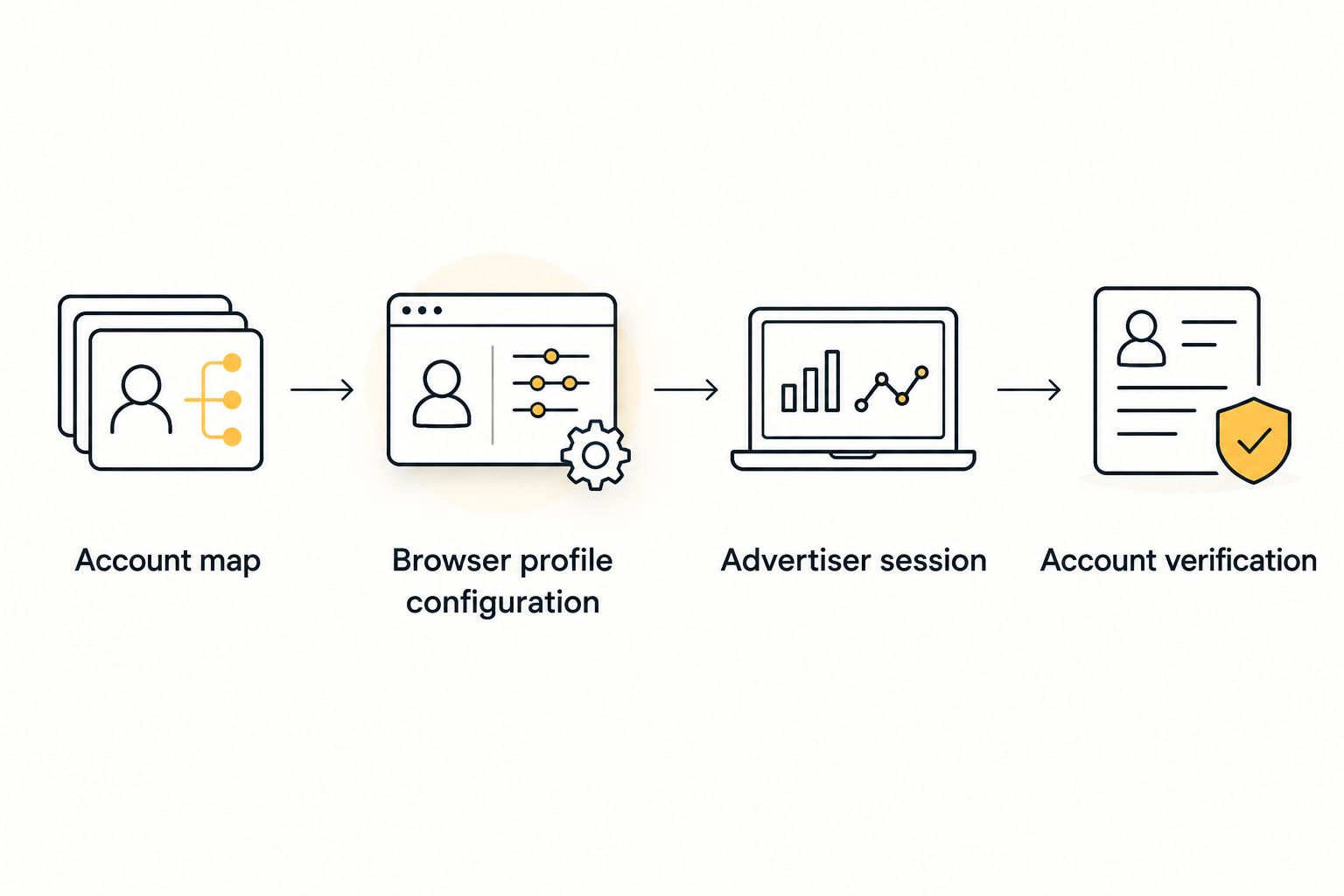
Advertiser session
- Open the advertiser login inside the assigned profile. Use your verified bookmark or the official login address supplied with your account. Confirm the destination before entering credentials, especially when following links from messages.
- Enter only the mapped account's credentials. Retrieve the credentials from your secure password manager. Complete any verification requested by the advertiser platform; do not try to suppress or bypass the challenge.
- Verify the signed-in account. Compare the visible account identifier with your account map. If it does not match, stop before touching campaigns, bids, balances, or creatives.
- Check the campaign context. Confirm that the campaign you intend to manage belongs to the verified account. Review its offer, GEO, traffic format, and current status before making an edit.
Expected result: the profile contains the correct authorized advertiser session, and you have confirmed the account independently of the campaign name.
This is the practical connection between EZmob and BitBrowser: you open the advertiser dashboard inside the assigned browser environment. Do not treat this workflow as an API connection, conversion-tracking integration, or automatic campaign synchronization.
Account verification
- Close and reopen the assigned profile. Return through BitBrowser's profile list and check that you have opened the intended environment. Confirm the account identity again, whether the existing session remains active or the platform requests a fresh login.
- Check another authorized profile separately. Open its assigned environment and verify its account identity. Do not copy cookies or session data from the first profile to make the second login faster.
- Record the verification outcome. Note the profile checked, account identifier, responsible operator, and date. Keep credentials and authentication secrets out of this record.
- Make a deliberate campaign change only after verification. Review the selected campaign and intended change before saving. Browser isolation is useful only when the operator still checks the account context.
Expected result: each profile opens the intended account environment, and the account check is repeatable rather than dependent on memory.
Use this verification procedure for the first setup and after a credential change, profile replacement, or access handover. Your 2026 launch checklist should require account verification before campaign edits, not after an unexpected result appears.
Reuse a profile when campaigns change
A campaign change does not require a new browser profile when the authorized advertiser account remains the same. Reuse the assigned environment and update the campaign record instead.
- Open the existing account profile and verify the signed-in identifier.
- Select the campaign you intend to change, then check the offer, GEO, format, and status.
- Record the planned edit before changing the bid, targeting, creative, or destination.
- Complete any moderation or verification requested by the platform before treating the campaign as ready.
Best for: media buyers launching new offers or creative tests within an existing approved account. The benefit is a stable access workflow; the limitation is that campaign separation still depends on naming, reporting, and platform permissions.
For a buyer handover, change the ownership record and review access through the platform's supported methods. Do not pass around a copied browser session as a substitute for authorized access. A profile name is an organizational label, not an access-control system.
Troubleshooting
The wrong advertiser account opens
Stop before making changes. Compare the profile name, account map, and visible login identifier, then sign out of the incorrect account inside that profile. Sign in with the mapped credentials and repeat verification.
If the profile was copied from another logged-in environment, replace it with a clean profile. Renaming a copied environment does not remove its existing session data.
Pages stop loading after proxy configuration
Check the proxy address, protocol, authentication, and provider-side status. Test basic page loading before returning to the advertiser login.
If the proxy is not required for the approved workflow, remove it and test the normal connection. If it is required, repair that connection rather than substituting an undocumented endpoint.
Login verification appears repeatedly
Complete the requested verification and check whether the browser environment or network route has changed. Avoid repeatedly switching profiles, locations, and credentials while troubleshooting the same login.
Keep authorized access consistent and contact the advertiser platform if the challenge persists. Do not interpret repeated verification as a reason to create replacement accounts.
Campaigns are not live after successful login
Check campaign status in the advertiser dashboard. New campaigns undergo creative moderation, and browser configuration does not determine the review outcome.
Address the campaign's actual status or review requirement. Rebuilding the BitBrowser profile will not resolve a creative-review issue.
Conversions are missing from reports
Inspect campaign tracking separately from browser sessions. Check the campaign destination, tracker configuration, and the conversion path used by the offer.
A BitBrowser profile does not itself configure a postback. Fix the tracking workflow rather than repeatedly clearing the advertiser login environment.
Customize your workflow
Expand the setup in separate layers: account access, campaign organization, and conversion tracking. Give each layer an owner and a verification check so a browser issue does not turn into an unnecessary campaign change.
For campaign measurement, use the Voluum conversion-tracking guide as a separate setup task. The browser workflow gets you into the right advertiser account; tracking connects campaign activity with conversion reporting.
Keep a short operating record for each account: assigned profile, authorized operator, access route, campaign naming convention, and tracking responsibility. Review it when responsibilities change, not only when something breaks.
For 2026 media buying, standardize the account check before expanding the number of environments. More profiles create more administration. Add them only when they solve a real account-separation requirement.
FAQ
How do I connect EZmob to BitBrowser?
Open the advertiser dashboard inside a dedicated BitBrowser profile and sign in with the credentials assigned to that profile. Verify the account identity before changing campaigns; this is a browser-session workflow, not a tracking connection.
What’s the best bitbrowser multi account setup for media buying?
Use a dedicated profile for each authorized advertiser account, with a documented owner and a repeatable account check. Keep campaign organization and conversion tracking separate from browser configuration.
Do I need a proxy for every BitBrowser profile?
Use a proxy only when your authorized access workflow requires one. A proxy changes the browser’s network route; it does not set the GEO targeted by an advertising campaign.
Does a separate browser profile allow me to open more advertiser accounts?
No. A browser profile separates browser session data but does not grant permission to operate additional advertiser accounts. Confirm the advertiser platform’s account requirements first.
Should I create a new profile for every campaign?
No, not when the campaigns belong to the same authorized advertiser account. Reuse the assigned account profile and separate campaigns through naming, settings, and reporting.
Why does my campaign stay under review after I configure BitBrowser?
Browser configuration does not change creative moderation. Check the campaign’s status in the advertiser dashboard and address the review requirement there.
Does BitBrowser send conversion postbacks?
This browser-profile workflow does not configure conversion postbacks. Set up campaign tracking separately through the advertiser platform, your tracker, and the offer’s conversion path.
What should I check before changing a campaign bid?
Verify the signed-in advertiser account and the selected campaign before editing the bid. Confirm the offer, GEO, traffic format, and intended change rather than relying on the browser profile name alone.
One last thing
A correct profile name is not proof of a correct login. A browser environment can have the right label and still contain the wrong account session. Make the visible account-identity check the final gate before every campaign edit.
For your 2026 setup, test that gate before adding more profiles. The useful outcome is not a longer profile list; it is a repeatable way to open the intended account and make the intended change.
Related guides
Ready to launch a campaign from your verified advertiser profile? Start advertising on EZmob.